

PKCE Guide
Step 1: Send your user to OpenRouter
To start the PKCE flow, generate a randomcode_verifier, derive a code_challenge from it, and send your user to OpenRouter’s /auth URL with a callback_url parameter pointing back to your site:
Authorization URL
code_challenge and code_challenge_method parameters are required. Set code_challenge_method to S256 and code_challenge to the base64url encoding of the SHA-256 hash of code_verifier (Auth0’s PKCE docs).
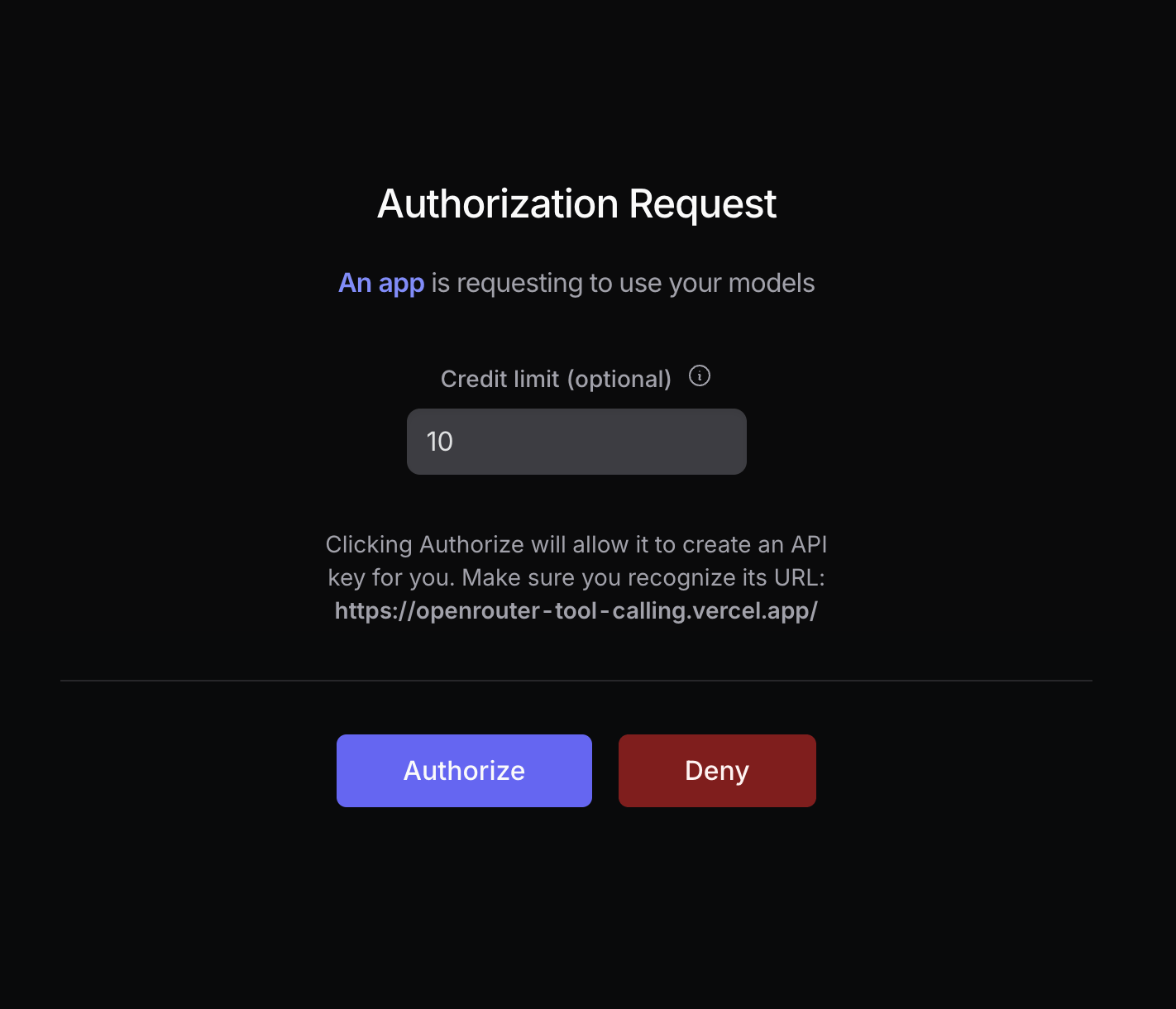
Your user will be prompted to log in to OpenRouter and authorize your app. After authorization, they will be redirected back to your site with a code parameter in the URL:
How to Generate a Code Challenge
Generate a newcode_verifier for every authorization request and keep it until the user returns to your callback, for example in sessionStorage or your server-side session. Never put it in a URL.
The following example uses the Web Crypto API and the Buffer API to generate a code challenge for the S256 method. You will need a bundler to use the Buffer API in the web browser:
Use an
https:// callback URL for hosted apps. PKCE stops a stolen code from being exchanged, but it cannot protect a page served over plain HTTP.Localhost Apps
Localhost callbacks are supported on any port. This is useful for CLI tools and local-first apps that bind to an arbitrary free OS port for the OAuth callback (e.g.http://localhost:51423/callback).
Localhost apps are assigned a fixed title matching the host and port (e.g.
localhost:3000) but will not appear in the OpenRouter marketplace or rankings. If you want a custom app name and marketplace presence, use a public URL as the callback instead.Headless Apps (SSH Servers, Containers)
If your app runs where a localhost callback can’t be reached (an SSH session, a remote dev box, a container), omitcallback_url entirely:
Headless (No Callback)
Optional Parameters
If both
workspace_id and required_workspace_id are present, required_workspace_id takes precedence. Use workspace_id to suggest a workspace and required_workspace_id to enforce one (for example, an internal onboarding flow that must mint keys into a specific team workspace).
Workspace IDs are validated server-side against the account the user authorizes with. A workspace the user cannot access is rejected, regardless of what the URL asked for.
Step 2: Exchange the code for a user-controlled API key
After the user logs in with OpenRouter, they are redirected back to your site with acode parameter in the URL:

https://openrouter.ai/api/v1/auth/keys to exchange the code for a user-controlled API key:
Deep-link to the user’s key
Once you have the API key, you can create links to the user’s OpenRouter activity and key settings pages by hashing the key with SHA-256. Use the lowercase hexadecimal digest in both URLs:404 rather than showing unfiltered data.
And that’s it for the PKCE flow!
Step 3: Use the API key
Use the API key to make OpenRouter requests. It is a secret that can spend the user’s credits until they revoke it. Store it encrypted in a server-side database, or in the OS keychain on desktop and mobile. Never persist it in browser-side storage such aslocalStorage, sessionStorage, IndexedDB, or cookies readable by JavaScript: any script running on your origin can read them. Keep it out of URLs and logs.
Error Codes
400 Invalid code_challenge_method: Make sure you’re using the same code challenge method in step 1 as in step 2.403 Invalid code or code_verifier: Make sure your user is logged in to OpenRouter, and thatcode_verifierandcode_challenge_methodare correct.403 Authorization code expired: Authorization codes expire 10 minutes after issuance. Restart the OAuth flow and exchange the new code promptly.405 Method Not Allowed: Make sure you’re usingPOSTandHTTPSfor your request.